
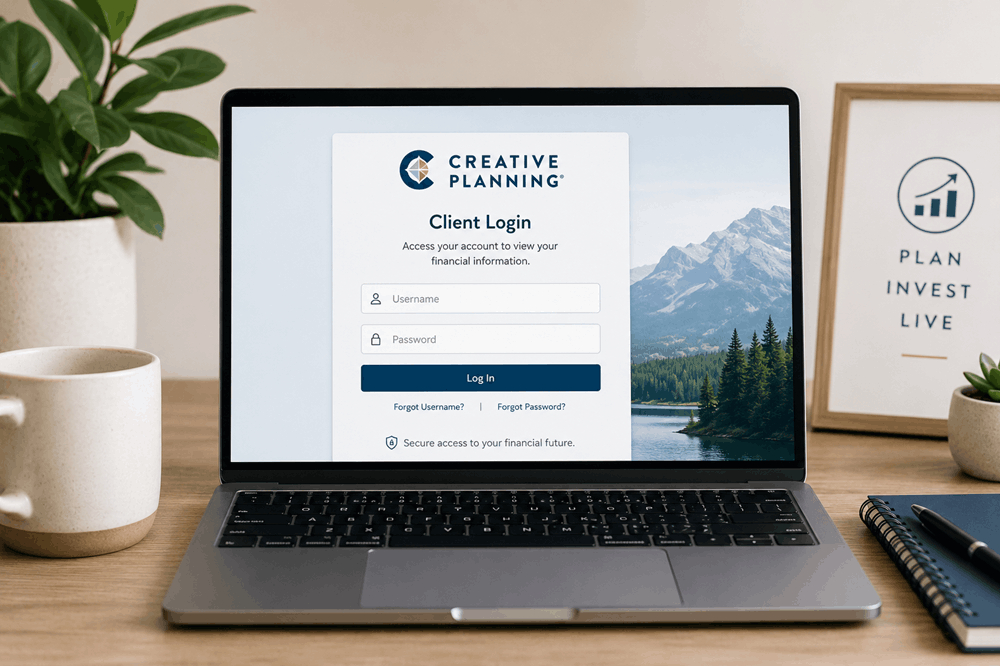
Creative Planning Login: How to Access Your Client Account
To access your Creative Planning account, begin at the company’s official Client Login page and choose the portal that matches your service.
Creative Planning uses different account systems for:
- Wealth-management clients
- 401(k) and retirement-plan participants
- CPA Simplified clients
- Property and casualty insurance clients
The correct login depends on the type of account you have. Selecting the wrong portal may lead to an unfamiliar sign-in screen or prevent your credentials from working.
Creative Planning’s official login page currently directs wealth-management users to Orion, retirement-plan users to YourBenefitAccount, CPA clients to ClientAxcess, and commercial insurance clients to Vertafore.
Creative Planning Login Options
| Type of account | Portal to choose |
|---|---|
| Personal wealth management | Creative Planning Wealth Management Account |
| Employer-sponsored 401(k) | Creative Planning 401(k) Account |
| Accounting and tax services | CPA Simplified Portal |
| Commercial insurance | Property & Casualty Commercial Account |
Always begin with Creative Planning’s official client-login page rather than searching for an unfamiliar third-party login screen. The official page sends you to the appropriate service provider.
How to Log In to a Creative Planning Wealth Management Account
Wealth-management clients should select the Wealth Management login under the Personal Wealth section.
The official Creative Planning page currently routes this login through Orion Advisor Solutions.
To sign in:
- Open Creative Planning’s official client-login page.
- Find Personal Wealth.
- Select the login beneath Wealth Management.
- Enter the username associated with your account.
- Continue to the password or verification step.
- Complete any requested multifactor authentication.
Your username may not necessarily be the same as your primary email address. Use the login information supplied when your online account was created.
If you have never signed in, check your account-opening emails for an invitation or activation message. Your wealth manager or financial advisor can also confirm whether your portal access has been established.
How to Access a Creative Planning 401(k)
Employees and retirement-plan participants should choose the Retirement Plans option instead of the wealth-management login.
Creative Planning’s official page currently sends 401(k) participants to a YourBenefitAccount portal.
To access your retirement account:
- Visit the official Creative Planning login page.
- Go to Personal Wealth.
- Find Retirement Plans.
- Select the Creative Planning 401(k) login.
- Enter your user ID and password.
- Complete identity verification if requested.
The retirement portal may provide access to information such as:
- Current account balance
- Contribution elections
- Investment selections
- Transaction history
- Beneficiary information
- Statements
- Plan documents
Available features vary according to the retirement plan offered by your employer.
Do not use the wealth-management portal for an employer-sponsored retirement account unless Creative Planning has specifically instructed you to do so. The two systems serve different types of clients.
CPA Simplified Portal Login
Clients receiving accounting or tax-related services may need the CPA Simplified Portal.
The official login page directs these users to ClientAxcess.
This portal may be used to exchange documents and communicate about services such as:
- Tax preparation
- Accounting
- Financial statements
- Business documents
- Secure file requests
- Completed returns
To sign in:
- Start at Creative Planning’s official client-login page.
- Scroll to Business Services.
- Choose CPA Simplified Portal.
- Enter the email address or username associated with the account.
- Enter your password.
- Complete any additional security verification.
Because tax documents contain sensitive personal and financial information, avoid sending them through ordinary email unless your accountant has provided specific secure instructions.
Property and Casualty Login
Commercial insurance clients should select the Property & Casualty option under Business Services.
Creative Planning currently routes this login to a Vertafore client portal.
Depending on the account and policy, the portal may provide access to:
- Policy documents
- Certificates of insurance
- Account information
- Insurance forms
- Claims-related documents
- Messages from the insurance team
The sign-in page may display the name or branding of the outside platform rather than showing only Creative Planning. This is normal when the link was opened from Creative Planning’s official page.
Why Are There Several Creative Planning Login Pages?
Creative Planning provides several financial and business services rather than operating one account for every client.
Its services for individuals include wealth management, investment management, tax planning, estate planning, retirement planning, and insurance. It also offers retirement-plan and business services.
These services involve different recordkeeping and document systems. As a result, a wealth-management client may use a different portal from:
- An employee checking a workplace 401(k)
- A business owner uploading tax documents
- A commercial insurance client reviewing a policy
Seeing several login choices does not mean you need an account with each one. Choose only the service connected to your relationship with Creative Planning.
How to Choose the Correct Login
Ask yourself what you are trying to view.
Choose Wealth Management if you want to see:
- Investment accounts managed through Creative Planning
- Portfolio values
- Performance information
- Account documents
- Wealth-management reports
Choose Retirement Plans if you want to see:
- A workplace 401(k)
- Employer retirement contributions
- Your contribution percentage
- Retirement investment options
- Plan statements
Choose CPA Simplified if you want to:
- Upload tax documents
- Download completed returns
- Exchange accounting files
- Respond to document requests
Choose Property & Casualty if you want to:
- Review commercial insurance information
- Access policy documents
- Request or retrieve certificates
- Communicate about a business insurance account
If you remain unsure, check the name of the portal in your welcome email or contact the professional who manages your account.
What to Do if Your Creative Planning Login Is Not Working
Login problems are often caused by using the wrong portal, entering an outdated username, or attempting to use credentials created for another Creative Planning service.
Work through these steps before repeatedly entering your password.
1. Confirm that you selected the correct account type
A 401(k) username will not necessarily work on the wealth-management portal. Similarly, credentials for the CPA portal may not work on the insurance portal.
Return to the official client-login page and choose the service again.
2. Check your username carefully
Make sure that:
- There are no extra spaces.
- Caps Lock is not enabled.
- Your browser did not insert an old username.
- You are using the correct email address.
- You have not confused a work email with a personal email.
3. Use the portal’s recovery option
Select Forgot password, Forgot username, or the equivalent recovery link shown on the login page.
Follow the instructions sent to the email address or phone number associated with your account.
Do not continue guessing your password. Multiple unsuccessful attempts may cause some financial portals to temporarily restrict access.
4. Check your email folders
Password-reset and activation messages may appear in:
- Spam
- Junk
- Promotions
- Quarantine
- Company security filters
Search for “Creative Planning” and the name of the relevant portal provider.
5. Try a private browser window
Stored cookies or an outdated session can interfere with sign-in.
Open a private or incognito window, return to the official login page, and try again. You can also clear the browser cache or use another supported browser.
6. Check multifactor authentication
If the portal sends a verification code:
- Confirm that your phone has service.
- Wait a few minutes before requesting another code.
- Make sure the code has not expired.
- Check whether the code was sent by text, email, or an authentication app.
- Do not share the code with anyone.
7. Contact Creative Planning
The official website advises clients to contact their wealth manager or financial advisor with account questions. It also lists Client Services at 866-909-5148 and Retirement Plan Services at 866-427-4015.
Use contact information from Creative Planning’s official website or your existing account documents rather than a phone number found in an unsolicited message.
Using the Creative Planning Mobile App
Creative Planning recommends its free mobile app for the best mobile account experience and links to versions in the Apple App Store and Google Play Store from its official login page.
To reduce the risk of downloading an imitation app:
- Begin at the official Creative Planning website.
- Follow its App Store or Google Play link.
- Confirm the app name and publisher before installing it.
- Review the permissions requested by the app.
- Protect your device with a passcode or biometric lock.
Avoid downloading financial apps through pop-up advertisements, unsolicited emails, or text-message links.
How to Protect Your Creative Planning Account
Financial accounts contain valuable personal information, so login security is especially important.
Use a unique password
Do not reuse a password from email, shopping, or social-media accounts. A password manager can create and store a strong, unique password.
Enable multifactor authentication
When available, multifactor authentication adds another verification step beyond your password.
Avoid public Wi-Fi
Do not access investment, retirement, tax, or insurance accounts over unsecured public Wi-Fi. Use a trusted private connection or your mobile network.
Examine the address before signing in
A fraudulent page may imitate a financial company’s branding. Begin on Creative Planning’s official website and use its client-login links.
Do not share verification codes
A legitimate support representative should not ask you to read out a one-time security code so that the representative can sign in as you.
Sign out on shared devices
Do not save your username or password on a public, workplace-shared, hotel, library, or borrowed computer.
Be cautious with unexpected messages
Treat messages claiming that your account will be closed, suspended, or urgently transferred with caution. Instead of clicking the message, open the official website independently or call your advisor using a trusted number.
Can You Create a Creative Planning Account Yourself?
Existing clients generally receive account-access instructions as part of their service or plan enrollment.
Do not assume that selecting “sign up” on an unfamiliar page will automatically connect you to your Creative Planning accounts. A portal may require:
- An invitation email
- An account number
- Identity verification
- Employer plan information
- Advisor authorization
If no activation message was provided, contact your advisor, employer’s benefits team, plan administrator, accountant, or insurance representative, depending on the account you need.
Frequently Asked Questions
Where is the official Creative Planning login?
The official client-login page is available through Creative Planning’s main website. It contains separate options for wealth management, retirement plans, CPA services, and property and casualty accounts.
Why did the login link take me to Orion?
Creative Planning currently uses Orion for its wealth-management account login. Reaching an Orion sign-in page is expected when you selected the wealth-management link from Creative Planning’s official page.
Which login should I use for my 401(k)?
Use the Retirement Plans login listed under Personal Wealth. Do not use the standard wealth-management login unless your plan administrator tells you otherwise.
Which login should I use for tax documents?
Choose the CPA Simplified Portal under Business Services.
Can I access Creative Planning from my phone?
Yes. Creative Planning links to its mobile app for Apple and Android devices and recommends the app for the best mobile experience.
Who should I contact if I am locked out?
Contact your wealth manager, financial advisor, or the appropriate Creative Planning service team. The official site lists separate numbers for general client services and retirement-plan services.
Start With the Official Client Login Page
The safest and simplest way to access a Creative Planning account is to begin on the company’s official client-login page.
Choose the portal based on the service you use:
- Wealth Management for managed investment accounts
- Retirement Plans for a Creative Planning 401(k)
- CPA Simplified for accounting and tax documents
- Property & Casualty for commercial insurance accounts
If your credentials do not work, confirm that you selected the correct portal before resetting your password. For unresolved access issues, contact your advisor or Creative Planning through the contact details published on its official website.