Microsoft Planner vs. Project: Which Is Better for Planning Events?
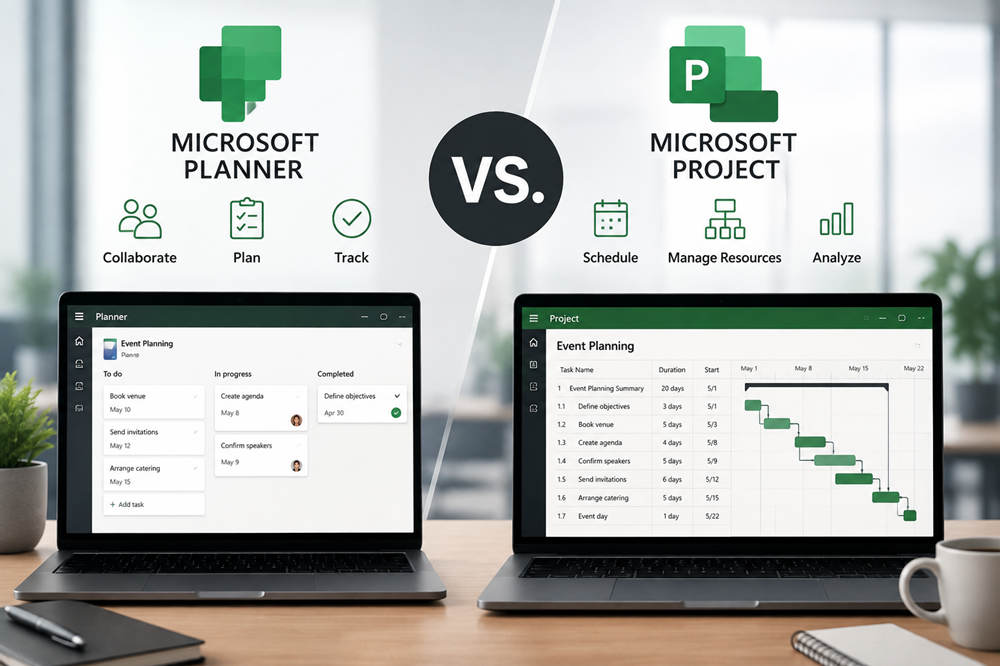
Microsoft Planner and Microsoft Project used to occupy fairly different corners of project management. Planner focused on accessible team task management, while Project was the more specialized choice for detailed schedules. That distinction is less clear today. Microsoft has expanded Planner substantially, Project for the web has moved into Planner, and Microsoft Project desktop remains available for more demanding project work.
For most teams, the choice now comes down to how much structure and scheduling control the project requires. Basic Planner may be enough for shared tasks, Planner Plan 1 adds structured project planning, and Planner and Project Plan 3 goes further with capabilities such as baselines, critical-path analysis, portfolios, and access to Project desktop.
Microsoft Planner vs. Project at a Glance
The simplest way to compare the products is to look at the level of project complexity each option is designed to handle.
| Option | Best For | Notable Capabilities |
|---|---|---|
| Planner in Microsoft 365 | Everyday teamwork and task tracking | Shared tasks, boards, charts, assignments, collaboration |
| Planner Plan 1 | Structured team projects | Timeline/Gantt view, dependencies, sprints, People view, milestones, custom fields |
| Planner and Project Plan 3 | More advanced project execution | Baselines, critical path, portfolios, advanced dependencies, Project desktop |
| Microsoft Project desktop | Detailed desktop-based project scheduling | Gantt scheduling, task and cost management, baselines, critical path, resource controls |
This tiered structure matters because “Planner vs. Project” is no longer a simple choice between a lightweight board and a powerful scheduling program. Microsoft’s current Planner plans cover a much wider range of project-management needs than older versions of Planner did.
What Is Microsoft Planner?
Microsoft Planner is a collaborative work-management application for organizing tasks and projects. Teams can create plans, assign work, set due dates, group tasks, track progress, and view responsibilities without requiring everyone involved to become a trained project manager.
The basic version available with eligible Microsoft 365 subscriptions is well suited to straightforward coordination. A team might use it to manage an event, organize a marketing campaign, track administrative work, or coordinate a launch. Each person can see what they are responsible for and how the overall plan is progressing.
Planner becomes considerably more capable with paid project-management plans.
Planner Plan 1 adds tools for more structured projects, including Timeline view in a Gantt-style format, task dependencies, backlogs and sprints, milestones, People view, project goals, and custom fields.
Planner and Project Plan 3 adds another level of control, including baselines, critical-path capabilities, portfolio creation, task history, advanced dependencies with lead and lag, and access to the Project desktop application.
Microsoft’s comparison of basic and premium Planner features reflects how much the product has moved beyond simple task boards.
What Is Microsoft Project Today?
The name Microsoft Project needs a little clarification because several Microsoft products have carried the Project name.
Project for the web is no longer a separate destination. Microsoft retired it in August 2025 and transitioned its projects and capabilities into Planner. That is why many features that were once associated with cloud-based Microsoft Project now appear inside premium Planner plans.
Project Online is a different legacy service. Microsoft has announced that it will retire on September 30, 2026. The retirement applies specifically to Project Online and does not mean Microsoft Project desktop is disappearing.
Microsoft Project desktop remains available. Microsoft currently offers Project Standard 2024 and Project Professional 2024 as desktop products. These editions are intended for detailed project scheduling rather than the everyday collaborative task management that sits at the heart of Planner.
For the purposes of a modern Planner-versus-Project comparison, Project desktop is therefore the most relevant Project product.
Microsoft Planner vs. Project: Key Differences
Ease of Use
Planner is designed to make work visible without demanding much project-management expertise. A user can create a task, assign an owner, set a date, and organize it within a visual plan. That makes it practical when many people need to participate in a project but only a few, if any, are professional project managers.
Project desktop has a steeper learning curve because it is built around more detailed scheduling. The extra complexity is useful when a project manager needs precise control, but it can be unnecessary overhead for a team that mainly wants to coordinate responsibilities and deadlines.
Team Collaboration
Planner has a clear advantage when day-to-day collaboration is the priority. It works in the Microsoft 365 environment and can be used through Microsoft Teams, allowing teams to manage plans alongside communication and other shared work.
This approach works particularly well when responsibility is distributed. An event team, for example, might have different people handling the venue, guest communication, catering, entertainment, and promotion. Planner gives everyone a shared view of progress without requiring one person to maintain a complicated master schedule in a desktop application.
Project desktop is more centered on the person building and controlling the project schedule. Its strengths become more noticeable when detailed planning matters more than broad team participation in the scheduling tool itself.
Scheduling and Dependencies
Scheduling used to be one of the clearest reasons to choose Project over Planner. That gap has narrowed.
Planner Plan 1 supports a Timeline view, task dependencies, milestones, and other structured planning features. For projects where one activity simply needs to finish before another begins, those tools may provide all the scheduling structure a team needs.
Planner and Project Plan 3 goes further with critical-path capabilities, baselines, and advanced dependencies that support lead and lag. These tools make it easier to see which activities control the completion date and how the project is performing against its original schedule.
Project desktop remains attractive when detailed scheduling is the core of the job. It provides a dedicated environment for managing complex task relationships, dates, project calendars, resources, costs, and schedule adjustments.
Resource and Workload Management
Planner Plan 1 includes People view, which can help managers see how tasks are distributed and identify potential workload imbalances. That is useful when the main question is whether one person has too much work while another has capacity.
Project desktop offers more detailed resource-management capabilities for schedules where availability and allocation affect the plan itself. Microsoft Project Standard 2024 includes resource leveling, while Project Professional is positioned as the more advanced desktop edition.
The practical distinction is scale. A small event team may simply need to redistribute several assignments. A large production involving multiple crews, contractors, rooms, equipment schedules, and fixed setup windows can require much more careful resource planning.
Project Oversight
Managing one project is different from overseeing many of them. Planner Plan 1 users can view portfolios, while Planner and Project Plan 3 includes the ability to create portfolios and manage work at a higher level.
That can be valuable for a department running several projects simultaneously. Instead of treating each launch, campaign, conference, or internal initiative as an isolated plan, managers can get a broader picture of important dates and progress.
Project desktop remains useful when an organization’s planning process revolves around detailed individual schedules, especially where established Project files and project-management practices are already part of the workflow.
Licensing
Licensing is one of the most important differences because not every feature described as “Planner Premium” belongs to the same subscription level.
Basic Planner is available with eligible Microsoft 365 subscriptions. Planner Plan 1 adds structured project-management capabilities. Planner and Project Plan 3 adds more advanced project controls and includes Project desktop.
Microsoft also sells Project Standard 2024 and Project Professional 2024 separately as one-time desktop purchases. The two desktop editions are not identical, so organizations considering either one should compare the specific features they require.
Microsoft can change product packaging, features, and pricing, so checking the current Project options before purchasing is more useful than relying on an old price comparison.
When Microsoft Planner Is the Better Choice
Planner makes the most sense when the central challenge is coordinating people and work rather than constructing a highly technical schedule.
Basic Planner may be enough for teams managing recurring operations, editorial calendars, smaller events, marketing campaigns, administrative projects, and other work where tasks need owners and deadlines but have relatively few complicated relationships.
Planner Plan 1 is a better fit when those projects become more structured. A team can add a Gantt-style Timeline, dependencies, milestones, workload visibility, sprints, and other planning tools without abandoning Planner’s collaborative approach.
For an event team, that could mean mapping the sequence from booking a venue to finalizing suppliers, launching invitations, confirming attendance, and preparing the event space while still allowing everyone involved to work from an accessible shared plan.
When Microsoft Project Is the Better Choice
Project desktop becomes more compelling when detailed scheduling is not just useful but central to managing the project.
It is better suited to environments where a project manager needs to maintain a large schedule, work closely with costs and resources, establish baselines, analyze critical activities, and understand how changes in one part of the schedule affect the rest.
That may include major implementations, engineering work, construction-style schedules, complex productions, or organizations with formal project-management processes built around Microsoft Project.
The desktop application can also make sense when the organization specifically prefers a desktop scheduling environment rather than making Planner the center of team collaboration.
Can Microsoft Planner Replace Project?
Planner has replaced Project for the web, but it has not replaced Microsoft Project desktop.
That distinction clears up much of the confusion surrounding the two products. Microsoft moved Project for the web into Planner in 2025, giving premium Planner plans capabilities that once belonged to its cloud Project experience.
For many organizations, that means Planner can now cover projects that would previously have seemed too complex for it. Planner Plan 1 can handle structured schedules, while Planner and Project Plan 3 extends the platform into more advanced project execution.
Project desktop still has a role for people whose work requires a dedicated, detailed scheduling application. The question is therefore not whether Planner has completely replaced Project, but whether Planner now covers enough of a particular team’s requirements that Project desktop is unnecessary.
Microsoft Planner or Project: Which Should You Choose?
The best choice becomes clearer when the options are matched to the complexity of the work.
- Choose Planner in Microsoft 365 if you mainly need shared tasks, assignments, deadlines, boards, and straightforward team coordination.
- Choose Planner Plan 1 if you also need structured project planning with Timeline/Gantt views, dependencies, milestones, sprints, and workload visibility.
- Choose Planner and Project Plan 3 if you need advanced dependencies, baselines, critical-path analysis, portfolio creation, and access to Project desktop.
- Choose a standalone Project desktop edition if detailed desktop scheduling is the main requirement and you do not need Planner to serve as the team’s primary collaborative workspace.
For many teams, including people organizing events, Planner is the more natural starting point because it keeps responsibilities visible and collaboration relatively simple. Moving to Planner Plan 1 adds substantial scheduling structure without changing that basic way of working.
Microsoft Project desktop becomes more valuable when the project itself is complicated enough that maintaining the schedule is a specialized job. The real dividing line is no longer “simple Planner versus powerful Project.” It is how much project-management depth the work actually requires.